Managing jobs
Each job gathers the position details, candidates, pipeline, calendar, emails and automations that belong to it.
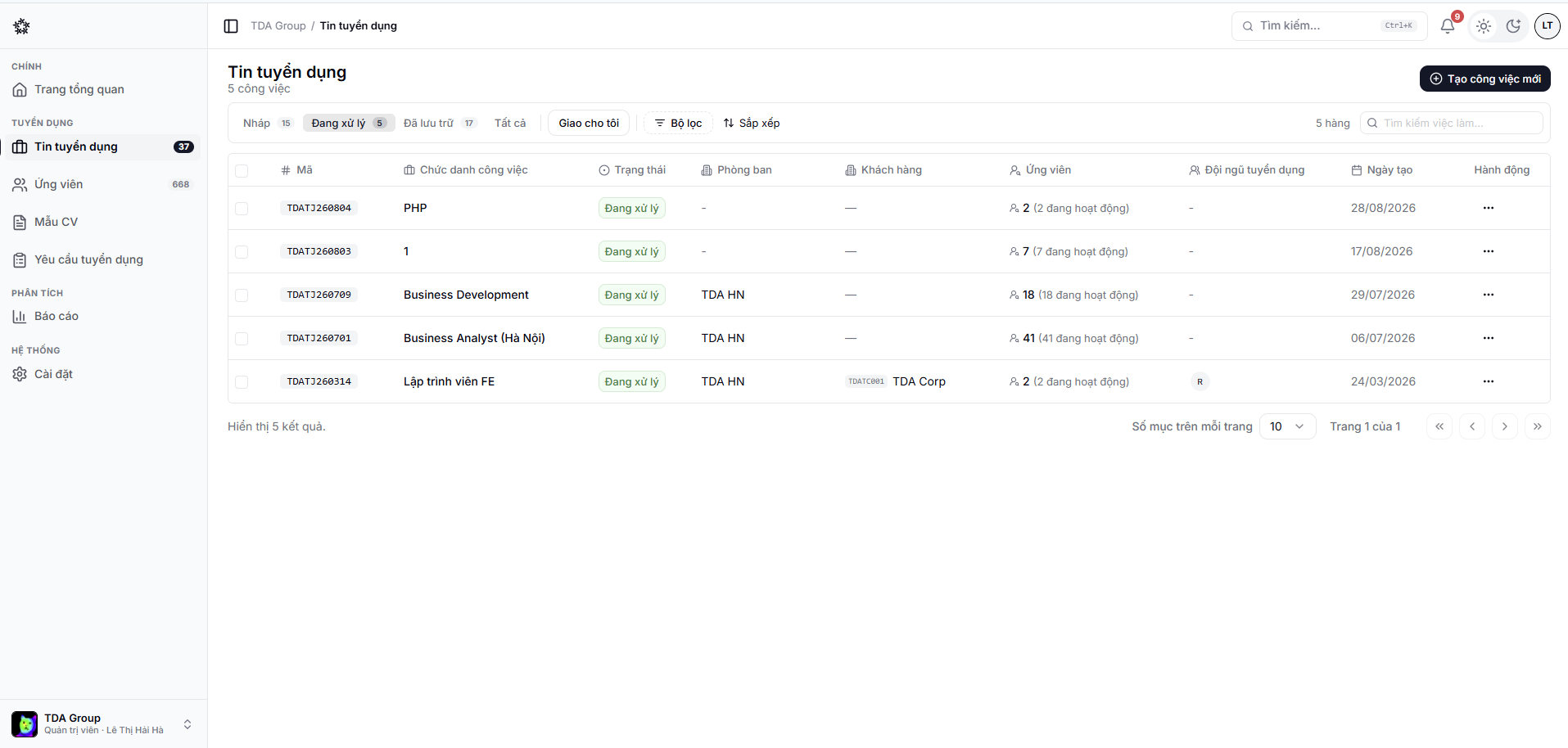
The job list
Under Jobs you can search and filter positions to focus on the ones you need. Statuses separate positions that are being prepared, actively hiring or closed.
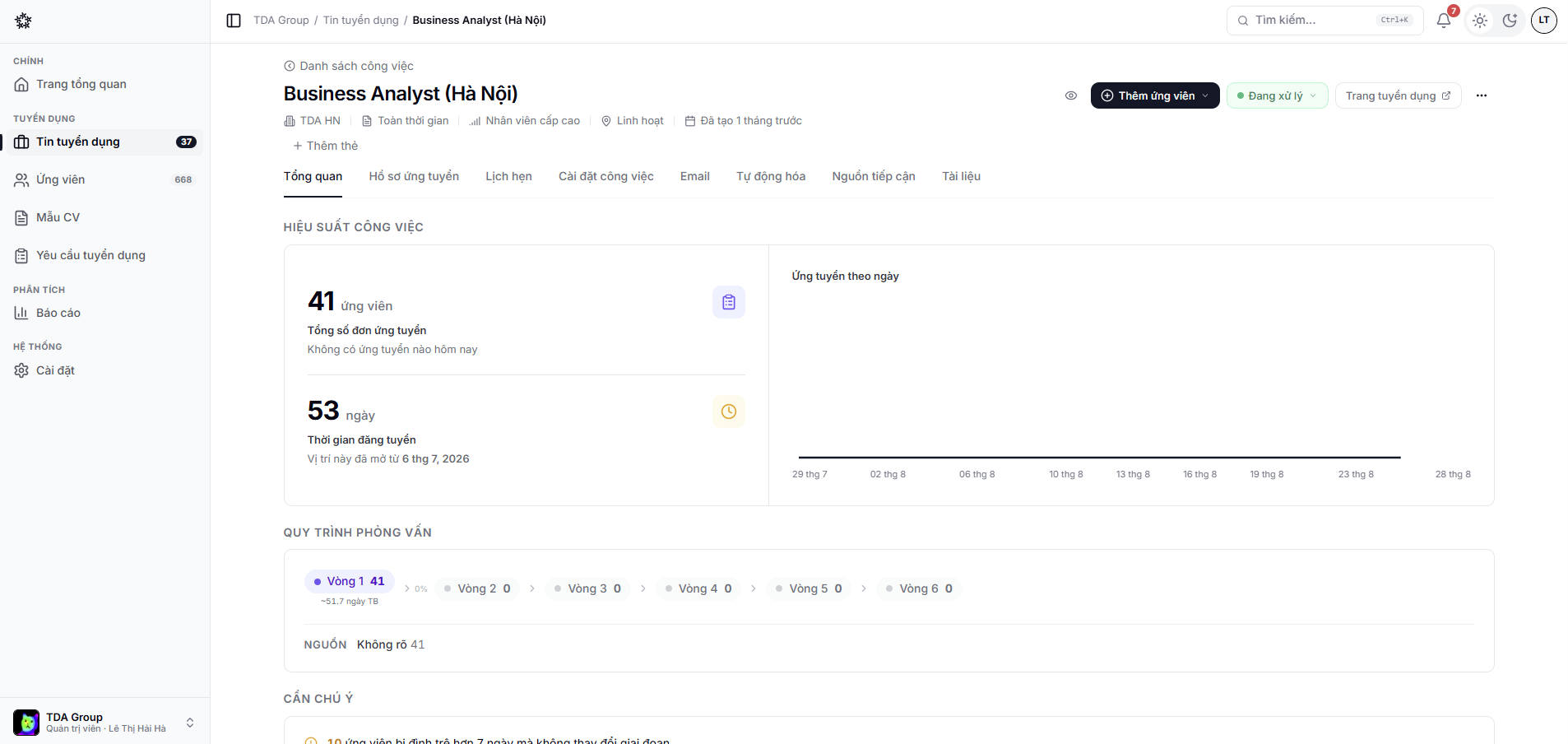
Inside a job
The areas you will use most are:
- Overview — key details and status;
- Candidates — the list or the pipeline board;
- Calendar — interview activity for the position;
- Email — messages sent or in progress;
- Automation — actions that run on a condition;
- Settings — attributes and hiring stages.
The life of a job
| Status | Meaning |
|---|---|
| Draft | Being written; candidates cannot see it |
| Published | Open, listed on the career page and accepting applications |
| Archived | Closed to new applications, but all the data stays searchable |
Change the status from the actions menu in the job list, or in the job's own settings.
Candidates, evaluations, email and the position's history all survive archiving and can be looked up at any time.
Duplicating a job
When you hire again for a similar position, duplicating beats starting over:
- In the job list, open the actions menu for the position you want to copy.
- Choose duplicate.
- Change the title and whatever else differs, then save.
The copy keeps the job description, the pipeline stages and the screening questions of the original, but no candidates.
Tab names and available features vary with what is enabled for your team and with your own permissions.