Workspace and navigation
Recruify organises data by team. One account can belong to several teams, and access is granted per team.
Main menu
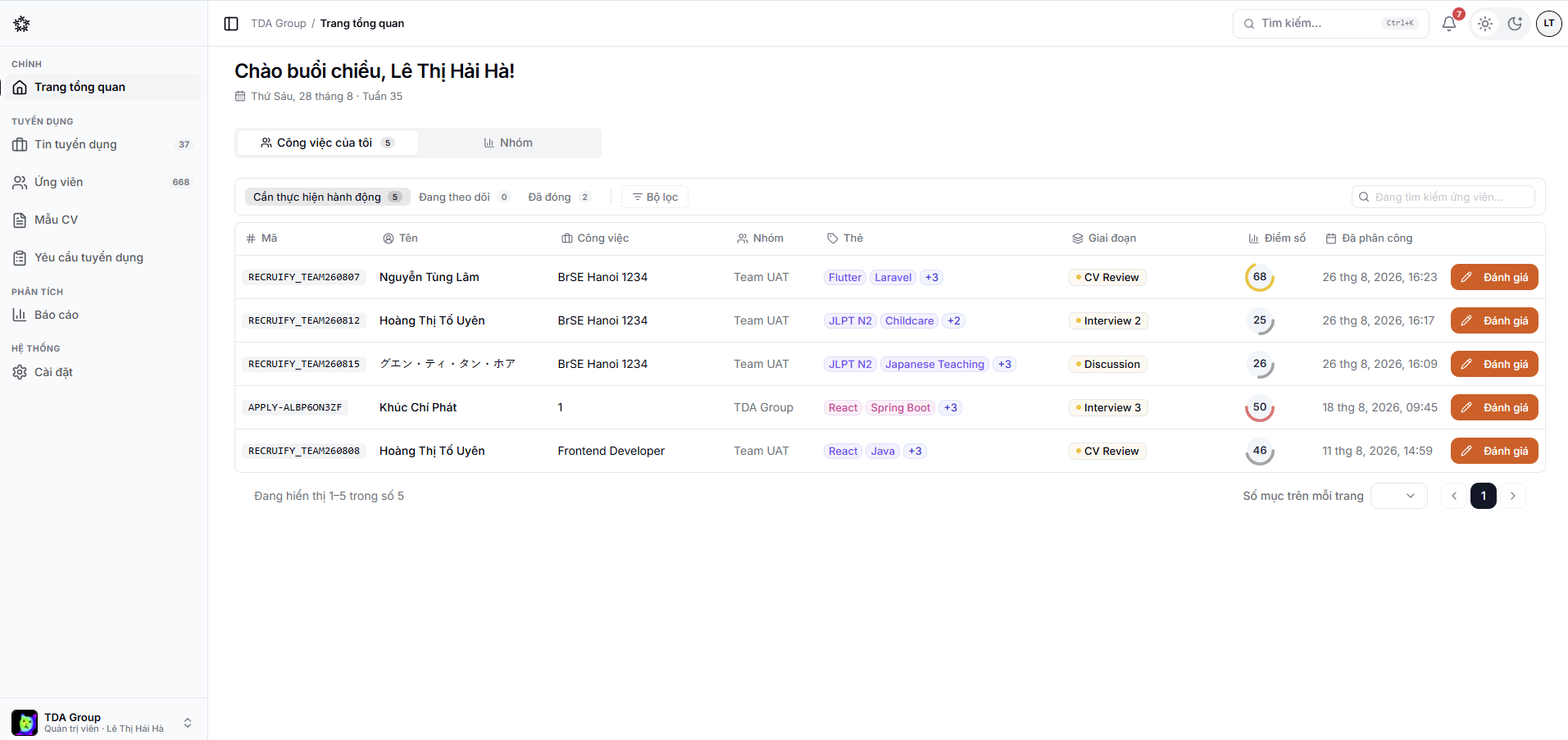
Depending on your permissions, the menu may include:
- Dashboard — what needs attention plus headline numbers;
- Jobs — the list of positions and their hiring pipelines;
- Candidates — candidate profiles across the whole team;
- CV templates — profile template settings;
- Job Requisitions — raising and approving hiring needs;
- Reports — figures by job, source and team;
- Settings — members, templates and organisation setup.
Switching teams
Use the team switcher in the account area to open a different workspace. Always check which team you are in before creating or editing data.
Quick search
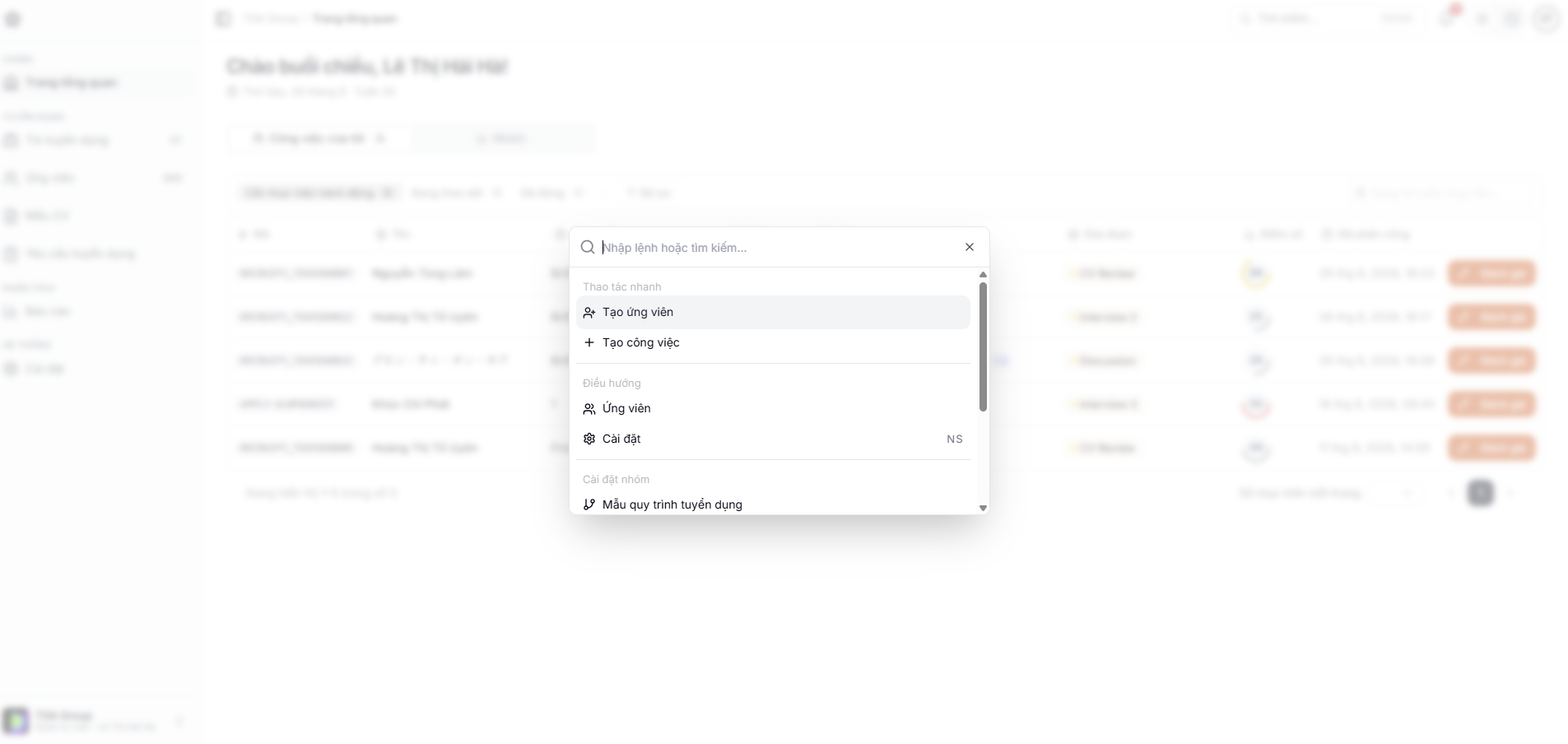
The search bar opens the areas and records you use most. On desktop it shows the keyboard shortcut for your operating system.
Notifications
The bell in the top bar collects the events that need your attention: a new application, someone mentioning you in a comment, an evaluation request, a rescheduled interview.
Choose which events reach you in the app and which by email under Account → Notifications.
Display language
Recruify is available in Vietnamese, English and Japanese. Open the account menu in the top right and pick the language you want.
The language applies to your account only and does not affect colleagues in the same team. Content people have typed — job descriptions, email templates — stays in the language it was written in.
If an item is missing from the menu, it is usually your access level in the current team.